

How to Activate eSIM on iPhone: Setup, Transfer & Troubleshooting Guide
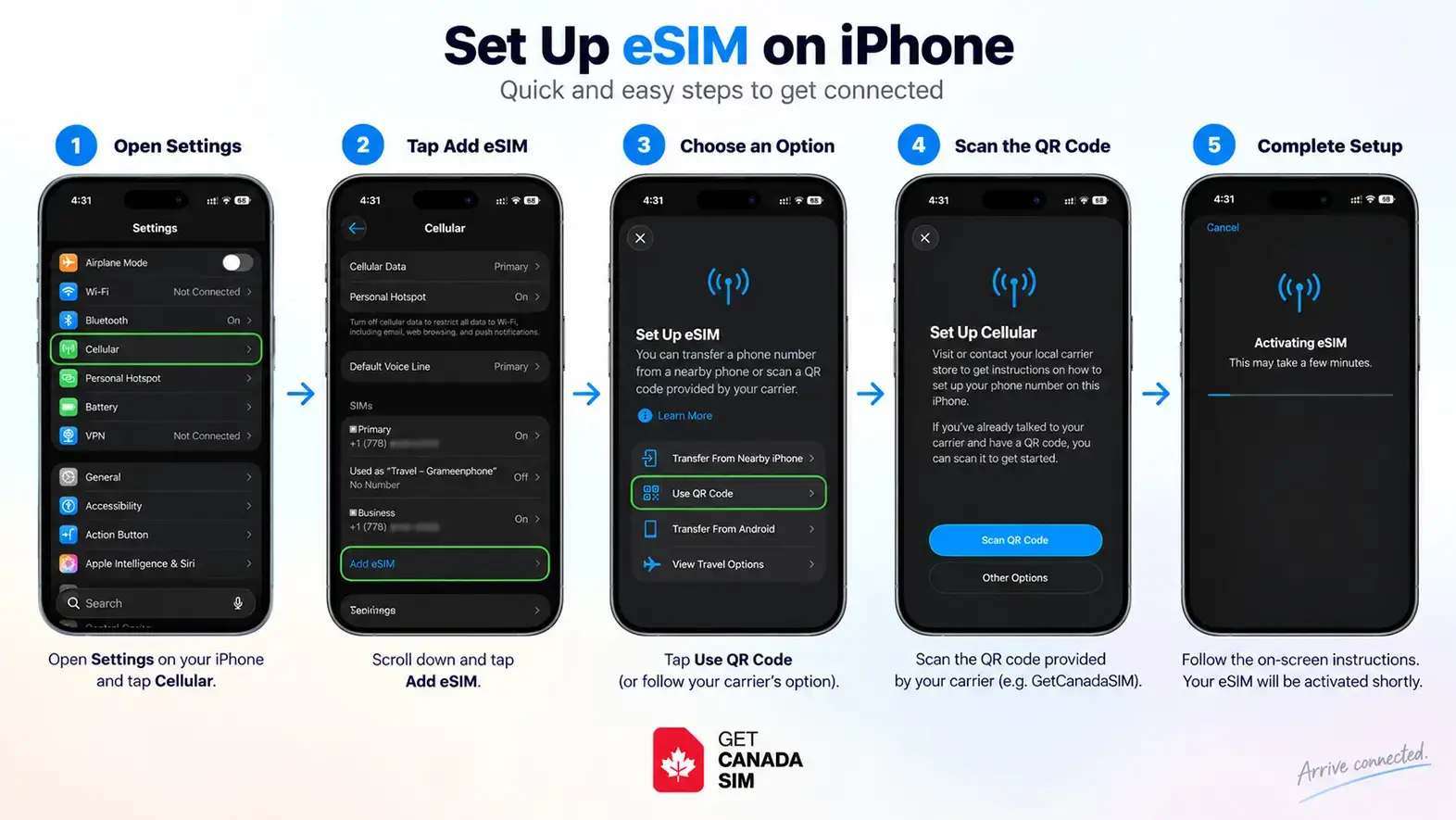
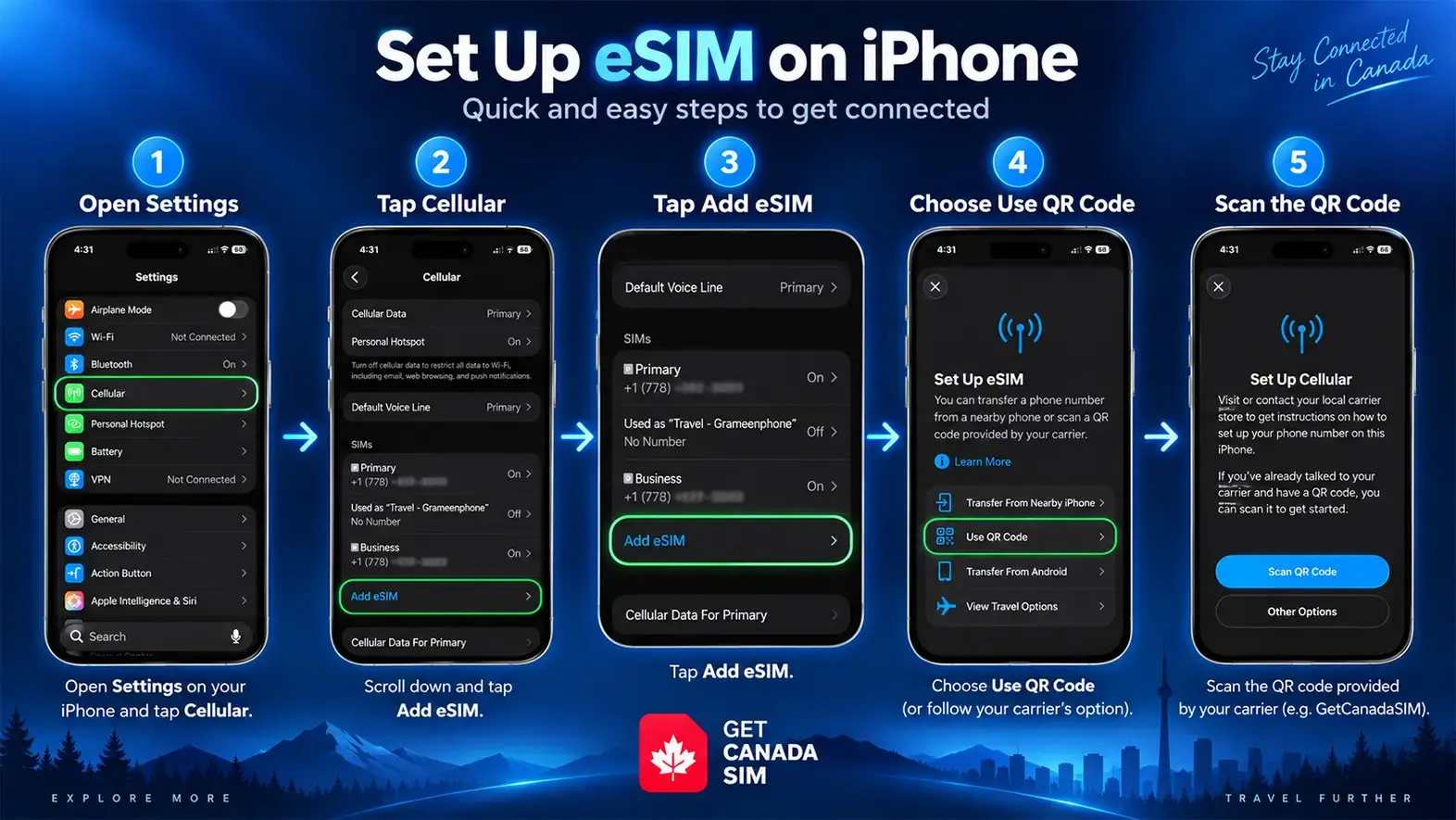
To activate an eSIM on an iPhone, connect your phone to Wi-Fi, open Settings → Cellular (or Mobile Data) → Add eSIM, then choose the activation method provided by your carrier. Depending on the carrier, you may transfer a number from a nearby iPhone, scan an eSIM QR code, use Carrier Activation, follow an activation link, use a carrier app, or enter the eSIM details manually. Apple supports eSIM on iPhone XS, XS Max, XR and later, although carrier and regional restrictions can apply.
Before buying or transferring a plan, it is worth taking a minute to check whether your phone supports eSIM. An iPhone model name alone does not always tell the whole story because regional versions can have different SIM configurations. You can check out our another blog on how to activate a Canadian eSIM.
Quick answer
| What you want to do | Where to start |
|---|---|
| Activate a new eSIM | Settings → Cellular → Add eSIM |
| Transfer your number from an old iPhone | Add eSIM → Transfer From Nearby iPhone |
| Scan a carrier QR code | Add eSIM → Use QR Code |
| Enter eSIM information manually | Add eSIM → Use QR Code → Enter Details Manually |
| Convert an existing physical SIM | Settings → Cellular → select line → Convert to eSIM, if supported |
| eSIM is stuck activating | Check connection, line status, carrier settings and restart |
| Moving to another iPhone | Try eSIM Quick Transfer first if your carrier supports it |
How to activate eSIM in iPhone: the quickest method
If you searched “how to activate an eSIM in iPhone” or “how to activate eSIM on iPhone,” this is the basic process:
- Connect your iPhone to Wi-Fi or another available internet connection.
- Open Settings.
- Tap Cellular or Mobile Data, depending on your region.
- Tap Add eSIM or Set Up Cellular.
- Choose the option your carrier gave you.
- Complete the instructions on screen.
- Wait until the new cellular line appears under Settings → Cellular.
- Test cellular data and, if included in your service, a call or SMS.
Apple says an internet connection is generally required for eSIM setup, although some eSIM-only iPhone models in certain countries can activate without Wi-Fi.
If you're still determining whether eSIM is the right SIM format for you, the GetCanadaSIM guide to what an eSIM is and how it works explains the technology without assuming you already understand SIM terminology.
The important point is that your iPhone does not create the mobile plan itself. The eSIM profile must come from a carrier or service provider.
Set up eSIM on iPhone: choose the right activation method
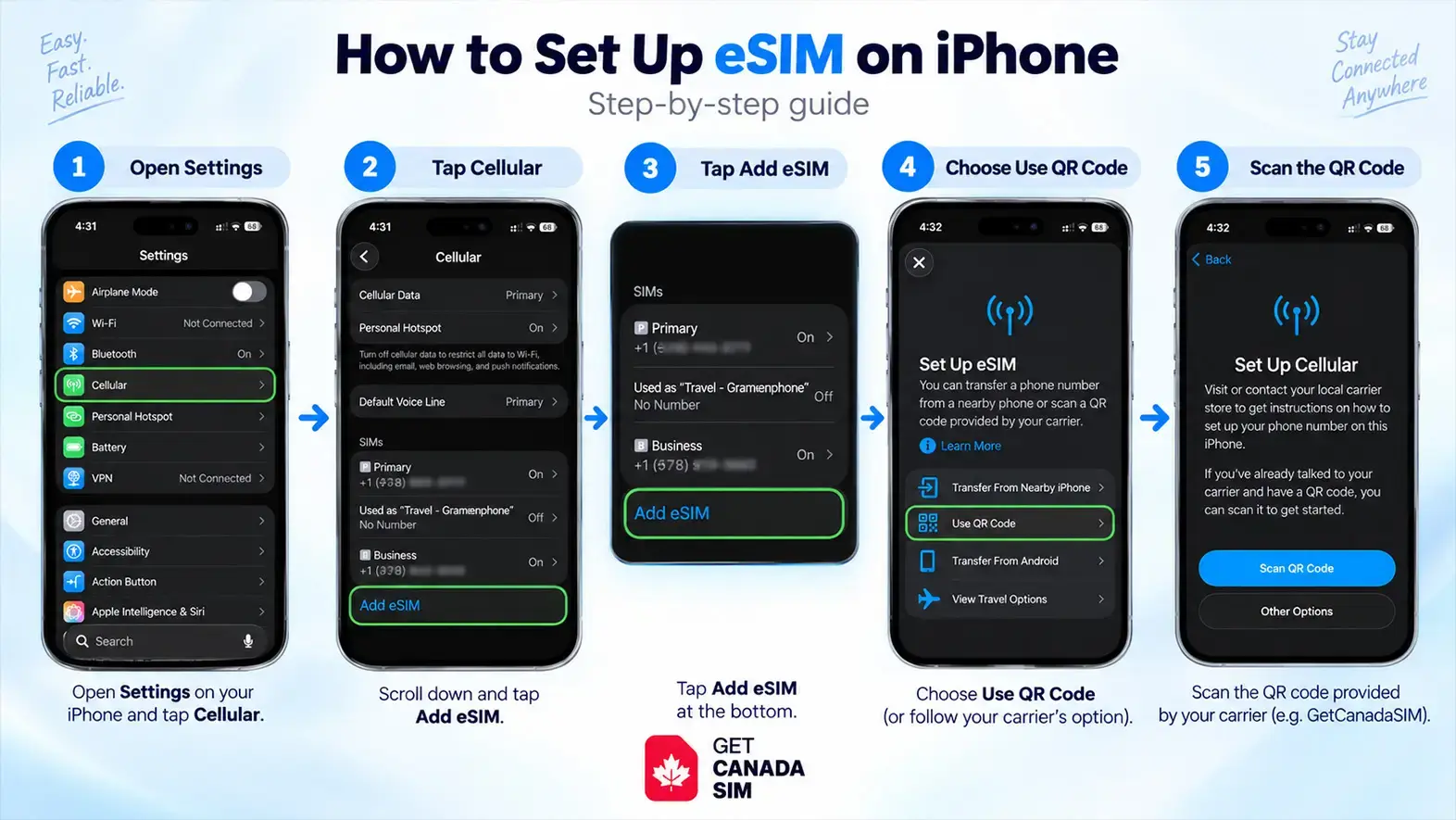
There isn't one universal way to set up eSIM on iPhone. Apple currently supports several methods, and the method available to you depends mainly on your carrier.
| Activation method | Best used when | What you need |
|---|---|---|
| eSIM Quick Transfer | Moving an existing line from one iPhone to another | Both iPhones nearby and carrier support |
| Carrier Activation | Carrier has already assigned an eSIM to the device | Carrier provisioning |
| QR code | Carrier sends you an eSIM QR code | QR code + internet connection |
| Carrier activation link | Carrier sends a clickable setup link | Supported iOS/carrier |
| Carrier app | Carrier manages SIM changes inside its app | Carrier app/account |
| Manual setup | Carrier gives SM-DP+ or other activation details | Details supplied by carrier |
| Physical SIM conversion | Keeping the same number but changing SIM format | Carrier must support conversion |
This distinction prevents one of the most common mistakes: following QR-code instructions when your carrier expects Quick Transfer, or trying Quick Transfer when your carrier requires a new eSIM profile.
If you're preparing an eSIM specifically for Canadian use, you can also review the eSIM Canada guide after confirming device compatibility. GetCanadaSIM-specific eSIM availability and activation conditions should be confirmed against the current plan before purchase.
Before activating an eSIM, check these four things
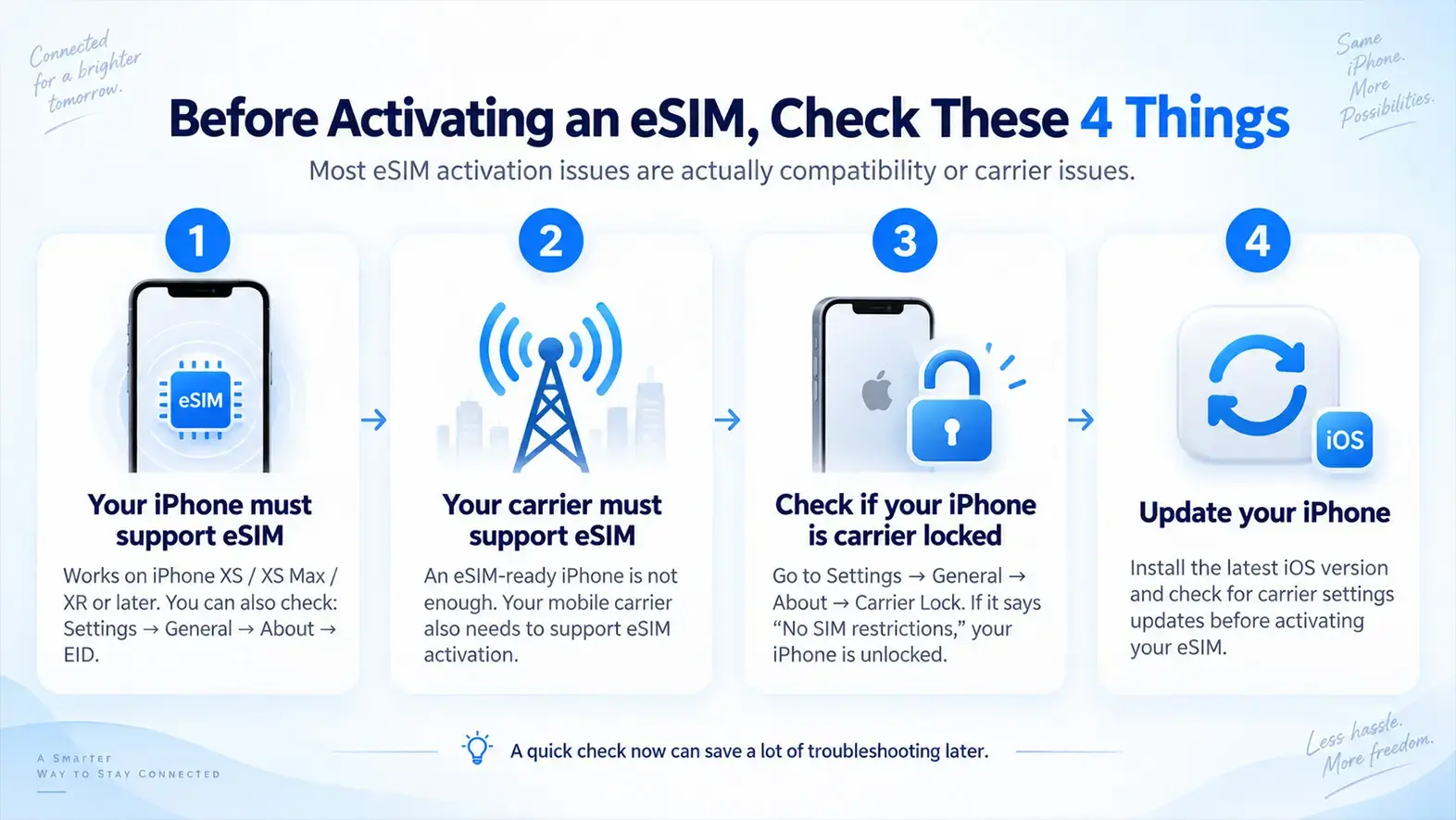
A lot of “eSIM won't activate” problems are actually compatibility or carrier problems.
1. Your iPhone must support eSIM
Apple's general requirement starts with:
iPhone XS / XS Max / XR or later
Regional exceptions exist. Apple specifically notes differences for mainland China, Hong Kong and Macao.
You can usually also check:
Settings → General → About → EID
An EID is an identifier associated with the eSIM hardware.
2. Your carrier must support eSIM
An eSIM-compatible iPhone does not mean every mobile carrier can activate an eSIM on it.
Your provider also needs to support the appropriate activation method.
3. Check whether your iPhone is carrier locked
Go to:
Settings → General → About → Carrier Lock
If Apple shows No SIM restrictions, the device is unlocked. A locked iPhone may prevent you from activating an eSIM from another carrier.
If you are travelling, this is worth checking before departure. GetCanadaSIM has a separate guide to checking and unlocking your phone before travelling to Canada.
4. Update your iPhone
Use the latest iOS version available to your device and check for carrier-settings updates.
These checks take only a few minutes and can save a much longer troubleshooting session.
How to activate an eSIM using a QR code
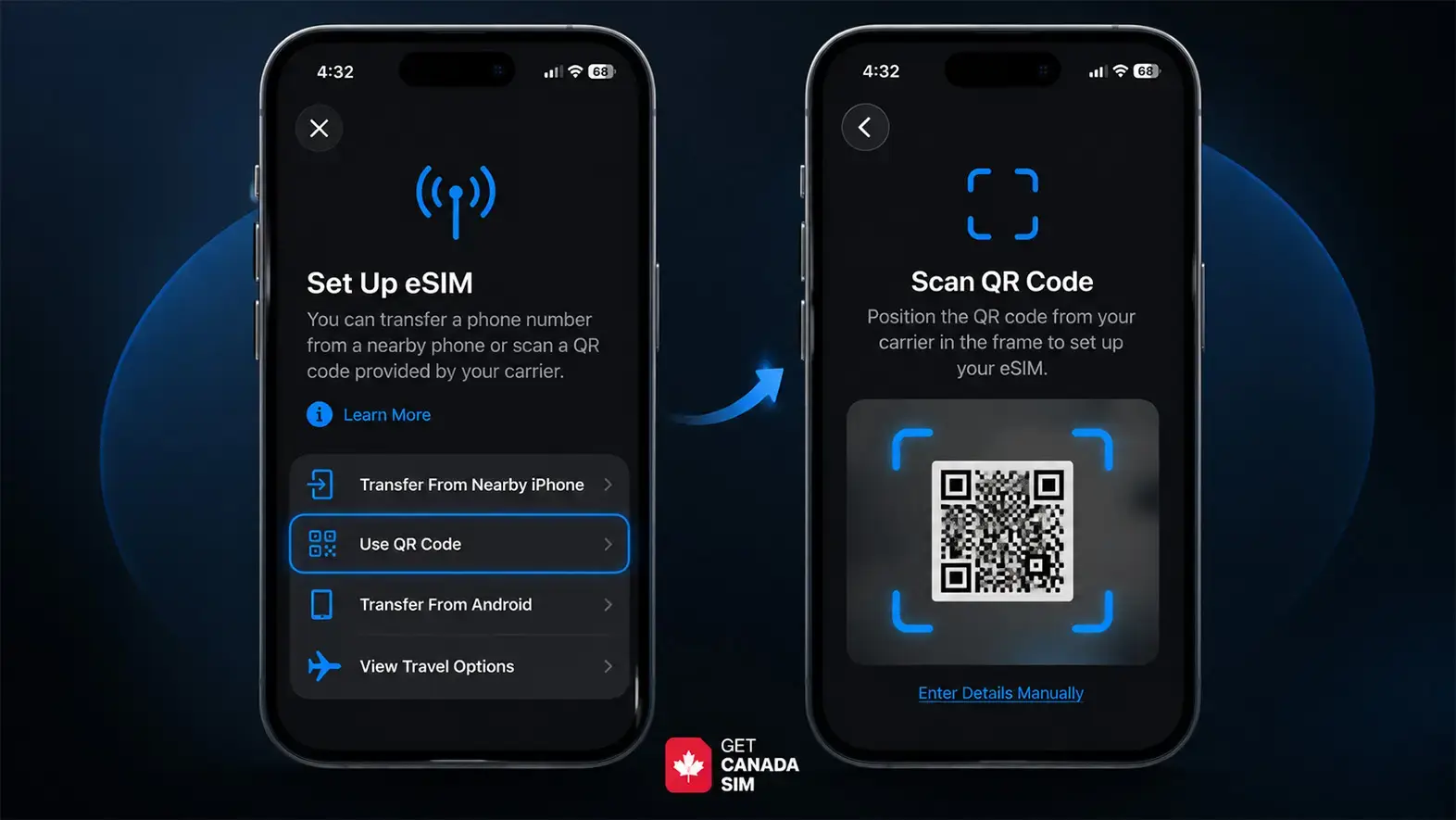
A QR code is one of the easiest activation methods when your carrier supports it.
Go to:
Settings → Cellular → Add eSIM → Use QR Code
Then scan the code supplied by your carrier.
Apple also says that on iOS 17.4 or later, if an eSIM QR code appears in a supported email app or browser on the same iPhone, you may be able to tap and hold the QR code, then choose Add eSIM.
After scanning:
Continue → Add Cellular Plan
If your provider supplied a confirmation code, enter it when prompted.
How to get QR code for eSIM
You don't normally generate an eSIM QR code yourself.
The carrier or eSIM provider supplies it.
Depending on the provider, you may receive the QR code through:
- your carrier account
- a carrier app
- a web account
- an eSIM voucher
- customer support
If you have not received one, contact the company providing your cellular plan rather than using a QR-code generator found online.
That QR code is linked to cellular provisioning information. Treat it like account information and don't post screenshots of it publicly.
For GetCanadaSIM's current order-to-activation process, see how the service works. Any plan-specific eSIM delivery method should be confirmed before publication.
How do I manually activate eSIM on my iPhone?
If your carrier has given you manual eSIM information rather than a QR code, you can enter it yourself.
Open:
Settings → Cellular/Mobile Data → Add eSIM → Use QR Code → Enter Details Manually
Your carrier may provide information such as an SM-DP+ address, activation code, or confirmation code.
Apple explicitly supports manual entry when a carrier supplies those details.
So if you're asking “how do I activate eSIM by myself?”, yes—you can often complete the phone-side setup yourself. But you still need a valid eSIM profile or activation information from your carrier.
You cannot invent the activation details yourself.
How to transfer eSIM from your old iPhone to a new iPhone
If you're upgrading iPhones, try eSIM Quick Transfer before looking for a QR code, provided your carrier supports it.
On your new phone:
Settings → Cellular → Add eSIM → Transfer From Nearby iPhone
Apple currently says both iPhones should be nearby, Bluetooth should be enabled, both devices should be signed in to your Apple Account, and supported software/carrier conditions must be met. With iOS 26, Apple also supports transferring more than one phone number in compatible situations.
When the mobile plan activates on the new phone, the corresponding SIM on the previous iPhone is deactivated.
Important: don't erase your old phone too early
Wait until you have confirmed that your new iPhone can:
connect to cellular data → make/receive calls → receive SMS if your plan includes it
before wiping or trading in the old phone.
This isn't just theoretical. In iPhone community discussions, users have reported transfers where the old line stopped working while the new iPhone remained stuck on Activating. Some reported that restarting solved the problem; others still needed their carrier. Community reports are useful for showing what can happen, but they aren't a replacement for carrier or Apple instructions.
Why is my eSIM not transferring to my new iPhone?
If your eSIM is not transferring to a new iPhone, several things can be responsible:
Carrier doesn't support Quick Transfer: Some providers require a new QR code, account-based SIM change or manual carrier intervention.
Phones aren't ready for Quick Transfer: Keep them nearby, unlocked, connected and with Bluetooth enabled.
The carrier needs to approve the new device: eSIM activation is partly a carrier-side process.
The old eSIM has already been deactivated: Your carrier may have to provision the new phone.
The QR code can't simply be reused: Some eSIM activation credentials are designed for a particular installation or device.
One community thread illustrates this well: a user could not complete the normal phone-to-phone transfer, but completing the device change through their carrier account allowed activation to proceed. That does not mean the same fix works for every carrier; it shows why the carrier side matters. (Reddit)
If Quick Transfer fails, don't repeatedly delete working lines. Check your carrier's documented transfer procedure first.
How to convert physical SIM to eSIM on iPhone
If you searched “how to convert physical SIM to eSIM” or “how to convert physical SIM to eSIM on iPhone,” Apple supports this when your carrier allows the conversion.
Try:
Settings → Cellular → select your phone number → Convert to eSIM
Then follow the prompts.
If Convert to eSIM doesn't appear, your carrier may not support direct conversion on that account or plan. Apple states that this feature is carrier-dependent.
Don't throw away the physical SIM immediately. Confirm the eSIM is working first.
If you're considering keeping two lines instead of replacing one, read the GetCanadaSIM guide to using Dual SIM in Canada.
How to activate eSIM on iPhone 11, 12, 13, 14, 15, 16 and 17
The setup menu is broadly similar across supported iPhones:
Settings → Cellular → Add eSIM
What changes between generations is mainly the SIM hardware configuration, number of active eSIMs supported, and regional availability.
| Model | eSIM situation | Practical note |
|---|---|---|
| iPhone 11 series | eSIM supported in applicable regions | Physical nano-SIM + eSIM commonly supported |
| iPhone 12 series | eSIM supported in applicable regions | One active eSIM alongside physical SIM on standard configurations |
| iPhone 13 series | Dual eSIM capability added | Can support two active eSIMs |
| iPhone 14 series | eSIM supported | U.S. models are eSIM-only; other regions differ |
| iPhone 15 series | eSIM supported | SIM tray availability depends on region |
| iPhone 16 series | eSIM supported | SIM configuration depends on market |
| iPhone 17 series | eSIM supported, with regional differences | Some regional models have no physical SIM tray |
Apple documents Dual eSIM support beginning with the iPhone 13 family and notes regional hardware differences across later generations.
How to activate eSIM on iPhone 11
For how to activate eSIM on iPhone 11, go to:
Settings → Cellular → Add eSIM
Then use the method your carrier supports.
The iPhone 11 generation supports eSIM in applicable regions, but unlike newer generations, it does not offer the same two-active-eSIM capability as iPhone 13 and later.
How to activate eSIM in iPhone 12
For how to activate eSIM in iPhone 12, follow:
Settings → Cellular → Add eSIM
Then scan a QR code, use carrier activation, or transfer a supported line.
Because iPhone 12 regional differences can matter, GetCanadaSIM has a complete guide answering whether iPhone 12 supports eSIM, including Dual SIM and regional-model considerations.
How to activate eSIM in iPhone 13
If you're searching “how to activate eSIM in iPhone 13,” the activation path is still:
Settings → Cellular → Add eSIM
The important difference is that iPhone 13 models added support for Dual SIM using two eSIMs as well as the physical-SIM-plus-eSIM configuration where available.
How to activate eSIM on iPhone 14
For how to activate eSIM on iPhone 14, use Add eSIM during initial setup or under Cellular settings afterward.
Be particularly aware of region: iPhone 14 and later models sold in the United States are eSIM-only, while hardware sold in many other markets can differ.
How to activate eSIM in iPhone 15
For how to activate eSIM in iPhone 15, use:
Settings → Cellular → Add eSIM
Then choose Quick Transfer, QR Code or another carrier-supported method.
If you are unable to activate eSIM on iPhone 15, don't assume the iPhone 15 itself lacks eSIM support. Check carrier provisioning, device lock, internet access, carrier settings and the specific regional model.
How to activate eSIM in iPhone 16
The steps for how to activate eSIM in iPhone 16 remain essentially the same:
Settings → Cellular → Add eSIM
SIM-tray availability depends on the region in which the phone was sold, but iPhone 16 models support eSIM.
How to activate eSIM on iPhone 17
If you're looking for how to activate eSIM on iPhone 17 or how to activate eSIM in iPhone 17, start with:
Settings → Cellular → Add eSIM
Then use your carrier's supported activation route.
The iPhone 17 generation deserves extra attention to regional hardware. Apple currently documents different physical-SIM/eSIM configurations depending on the country or region where the device was purchased. Some versions without a physical SIM tray must use eSIM.
How to activate eSIM on iPhone with Rogers
For users searching “How to activate eSIM on iPhone Rogers,” Rogers currently supports several activation routes, including device setup, MyRogers, rogers.com and eSIM vouchers. Rogers also provides options for transferring eSIMs and changing from a physical SIM to eSIM.
For example, Rogers currently documents an online flow where an eligible customer can sign in, select the mobile number, manage/change the SIM, choose eSIM, scan the resulting QR code on the new phone and complete the SIM change. (Rogers)
Because carrier processes change more frequently than Apple's basic iPhone menu, use the current Rogers instructions when completing a Rogers-specific SIM change.
If you're comparing mobile options rather than already having an active line, review current Canada SIM and eSIM plans after checking your phone compatibility.
eSIM stuck on activating iPhone: what should you do?
Seeing Activating… does not immediately mean activation has failed.
Sometimes the status changes within a few secs; other activations can take longer because your iPhone is waiting for the carrier to finish provisioning the line.
But if eSIM is stuck on activating on iPhone, work through this order:
1. Check internet access. Connect to a stable Wi-Fi network or another supported connection.
2. Turn Airplane Mode on and off.
3. Open Settings → Cellular. If the new line appears, turn the line off and back on.
4. Restart the iPhone.
5. Check for a carrier-settings update. Open Settings → General → About.
6. Update iOS.
7. Check your carrier account. Make sure the carrier has activated/provisioned the plan against the correct IMEI/EID.
8. Contact the carrier if activation still doesn't complete.
These first troubleshooting steps align with Apple's current eSIM troubleshooting guidance.
Apple recommends having your phone number, account details, exact error message, IMEI and EID available when contacting your carrier.
Why is eSIM not activating on iPhone?
If you're asking “why is eSIM not activating on iPhone?”, think about the problem in four layers:
| Layer | Possible problem | What to check |
|---|---|---|
| Phone | Wrong regional model, software problem | EID, exact model, iOS |
| Carrier | Plan not provisioned or transfer unsupported | Carrier account/support |
| Connection | No usable internet during setup | Wi-Fi/cellular connection |
| Activation credentials | Invalid/expired/used QR or wrong details | Request valid details from carrier |
This is more useful than repeatedly scanning the same QR code.
An eSIM activation involves both your iPhone and the carrier's network, so sometimes there is nothing wrong with the phone itself.
Why Is My iPhone Taking So Long to Activate My eSIM?
There is no single guaranteed activation time because the carrier has to provision the service.
If your iPhone is taking a long time to activate an eSIM, check whether:
- the line appears under Cellular
- signal bars have appeared
- the carrier account shows the new device
- your old SIM has already stopped working
- your phone has internet access
- the carrier is experiencing an activation problem
An interesting real-world example appeared during a new-iPhone launch: several Reddit users reported their phones appearing stuck at Activating eSIM. One user said the phone already displayed signal bars and the carrier showed the correct new device, and restarting allowed setup to finish. Others in the same discussion still needed their carrier.
The useful lesson isn't “restart fixes every eSIM.” It is:
Look for signs that provisioning has already completed before assuming the activation failed.
Unable to activate eSIM on iPhone 17
If you're seeing Unable to activate eSIM iPhone 17, start with Apple's normal troubleshooting flow rather than assuming there's an iPhone 17-specific defect.
Check:
Wi-Fi → latest iOS → Cellular line → Airplane Mode → restart → carrier settings → carrier provisioning
Also confirm the exact iPhone 17 regional model.
A community report from an iPhone 17 Pro owner described a physical-to-eSIM conversion remaining on Activating for hours. The discussion pointed back to carrier provisioning as something that needed checking. That is an anecdote rather than proof of a general iPhone 17 issue, but it reinforces why carrier involvement matters.
eSIM not supported on iPhone 17: does the message mean the phone can't use eSIM?
Usually, don't interpret “eSIM not supported iPhone 17” as proof that every iPhone 17 lacks eSIM functionality.
The iPhone 17 family supports eSIM. What may be unsupported is:
- that particular carrier
- a particular eSIM profile
- a regional combination
- the device's lock status
- the requested transfer method
- an incorrectly provisioned plan
Apple's current documentation shows regional differences across iPhone 17 SIM configurations, so exact model and place of purchase matter.
“This eSIM is not compatible with this iPhone, contact your carrier for more information”
If your iPhone displays “This eSIM is not compatible with this iPhone, contact your carrier for more information,” don't immediately erase every existing eSIM.
Check the following first:
Carrier lock: Settings → General → About → Carrier Lock.
Exact iPhone model/region: The phone may have a regional limitation.
Carrier compatibility: Confirm that the provider supports your device.
eSIM profile: Ask whether the carrier needs to issue a new activation profile.
IMEI/EID: Confirm that the carrier has registered the correct device identifiers.
There are community reports where repeatedly generating new QR codes didn't fix this type of compatibility error, reinforcing that the underlying issue can be device/carrier provisioning rather than the QR image itself.
At that point, the carrier is the right party to investigate the provisioning record.
Unable to activate eSIM on iPhone 15
For “Unable to activate eSIM iPhone 15”, use the same diagnostic order:
internet → carrier support → lock status → iOS → carrier settings → IMEI/EID → carrier provisioning
A failed activation does not normally mean the iPhone 15 lacks eSIM hardware.
Also check where the phone was purchased because SIM configuration varies by region.
If you're planning to use the device abroad, the GetCanadaSIM guide on whether your phone will work in Canada covers device unlocking, model compatibility and IMEI-related checks.
Why is my eSIM not working suddenly?
This is slightly different from an eSIM that never activated.
If an eSIM was working and suddenly stopped, check:
Line status: Settings → Cellular → select your eSIM → make sure the line is on.
Airplane Mode: Toggle it on and off.
Network signal: Check whether your carrier has service in the location.
Plan status: Confirm the line hasn't expired, been suspended or changed.
Carrier settings: Settings → General → About.
iOS: Install any available update.
Restart: Reboot the phone.
Carrier outage or account issue: Check directly with your carrier.
Avoid deleting the eSIM as your first troubleshooting step. If the profile cannot be reinstalled with the same credentials, deleting it can turn a temporary connectivity problem into an activation problem.
Should I delete an eSIM that isn't working?
Usually, not as the first step.
Try Apple's normal troubleshooting first.
Deleting an eSIM removes its profile from the phone. Depending on your provider, reinstalling it may require:
- another transfer
- a new QR code
- a carrier account action
- support assistance
This is especially important before travelling or while moving service between phones.
Activating an eSIM for travel
eSIM can be useful while travelling because compatible iPhones may let you keep your normal line and add another cellular line.
For example:
| Home line | Travel/Canadian line |
|---|---|
| Keep existing number | Use destination mobile service |
| Data roaming off | Use for mobile data |
| Receive important messages where supported | Local calls/data according to plan |
Apple supports using Dual SIM while travelling internationally on compatible models.
If Canada is your destination, GetCanadaSIM's prepaid eSIM Canada information may be useful for shorter stays.
Travellers can also read the dedicated Canada SIM guide for tourists before choosing a plan.
For longer study stays, the questions are different—monthly cost, duration and ongoing service matter more than a short travel allowance. The Canada SIM guide for international students covers that use case.
Before using your iPhone eSIM in Canada
Activation success doesn't automatically mean your phone will work perfectly on every network.
Before travelling, check:
eSIM support → carrier unlock → exact iPhone model → Canadian network compatibility → plan inclusions → activation timing
GetCanadaSIM's main site explains its pre-arrival service for people planning Canadian connectivity. Explore GetCanadaSIM
After you've completed the compatibility checks, you can compare Canada SIM and eSIM plans and pricing.
For users coming specifically from India, the Canada SIM from India guide also covers pre-arrival mobile considerations relevant to that journey. Readers from other countries should use the corresponding country guide rather than assuming the India-specific information applies to them.
Frequently asked questions
How do I activate eSIM by myself?
Go to Settings → Cellular → Add eSIM and use the activation method supplied by your carrier. You can often complete the phone-side setup yourself, but the eSIM profile must still come from a carrier or provider.
How do I manually activate eSIM on my iPhone?
Go to Settings → Cellular → Add eSIM → Use QR Code → Enter Details Manually and enter the activation information provided by your carrier.
How to activate eSIM on iPhone?
The standard route is Settings → Cellular → Add eSIM. Then select Quick Transfer, QR code, Carrier Activation or another carrier-supported method.
How to get QR code for eSIM?
Request it from the carrier or eSIM provider. The iPhone itself doesn't generate a carrier activation QR code for a new mobile service.
Why is eSIM not activating on iPhone?
Common causes include internet problems, carrier provisioning, unsupported transfer methods, outdated carrier settings, device locks, regional-model differences or invalid activation credentials.
Why is my eSIM not transferring to a new iPhone?
Your carrier may not support eSIM Quick Transfer, or it may require an account-based SIM change, a newly issued eSIM or additional verification.
Why Is My iPhone Taking So Long to Activate My eSIM?
Your iPhone may be waiting for the carrier to provision the line. Check internet access, Cellular settings, carrier settings and your carrier account, then restart the device. Contact the carrier if it remains stuck.
Can I convert a physical SIM to eSIM?
Yes, if your carrier supports it. Look under Settings → Cellular → your number → Convert to eSIM. If the option isn't there, ask your carrier what conversion methods they support.
Do I need Wi-Fi to activate an eSIM?
Usually yes. Apple says a new iPhone generally needs Wi-Fi or a hotspot for eSIM setup, although certain eSIM-only devices in some countries and regions can activate without Wi-Fi.
Does installing an eSIM automatically turn off my old SIM?
Not always. But when transferring the same mobile number through Apple's supported transfer process, the previous SIM is deactivated when the plan activates on the new iPhone.
The simplest way to remember the process
For most people, how to activate eSIM in iPhone comes down to this:
Check compatibility → get the eSIM from your carrier → Settings → Cellular → Add eSIM → choose the correct activation method → wait for the line to activate → test service before deleting or wiping anything.
If it doesn't work, don't immediately reset the phone or erase the eSIM.
First determine whether the problem is with:
the device, the connection, the eSIM profile, or the carrier provisioning.
That one distinction can save a lot of unnecessary troubleshooting.
If you're preparing to use the iPhone in Canada, confirm your phone first and then compare current plans and pricing.
Follow Get Canada Sim on Google
Make Get Canada Sim a preferred source to find our latest Canada SIM and eSIM guides in Google Search.